

Learn about the key feature sets of GNOME 50 desktop environment.
A fresh release of GNOME 50 “Tokyo” landed on March 18, 2026. This version brings solid improvements in parental controls, accessibility, file management, and display technologies. It marks a big step forward for families, assistive tech users, and everyday productivity while making the desktop feel more polished and responsive.
Overall, many changes feel long due, especially around screen time management and smoother display handling.
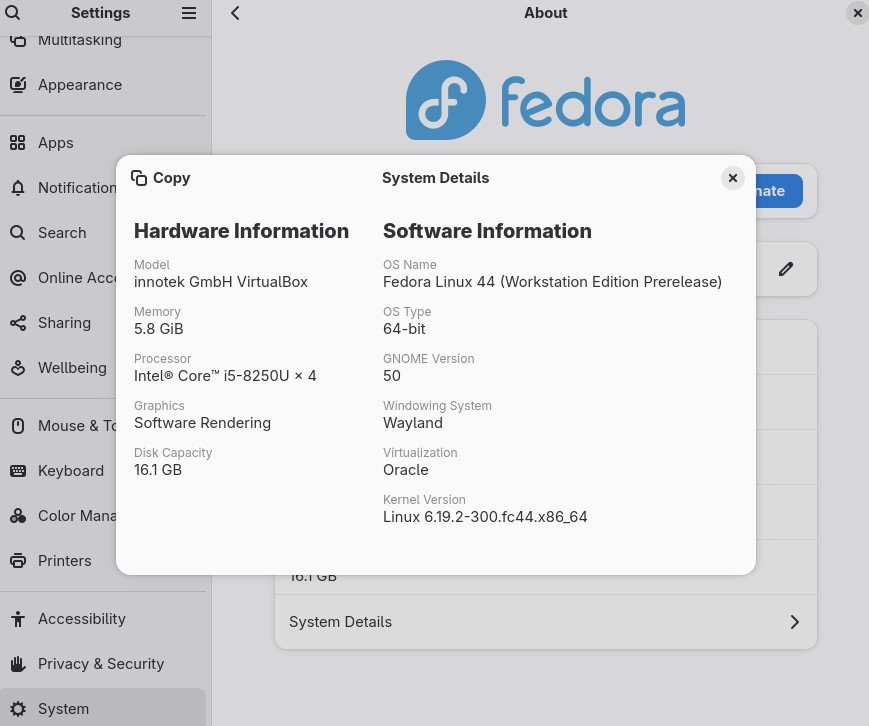
Table of Contents
GNOME 50: Key Highlights
This release mostly focuses on making GNOME more family-friendly and accessible.
Parental Controls see a massive leap forward. For the first time, parents and guardians can monitor screen time, set usage limits, and create bedtime schedules for child accounts. The screen automatically locks when limits are reached. You can extend time directly if needed. A modern Parental Controls app now offers a fresh, clean interface. Foundations for web filtering are also in place for future content restrictions.
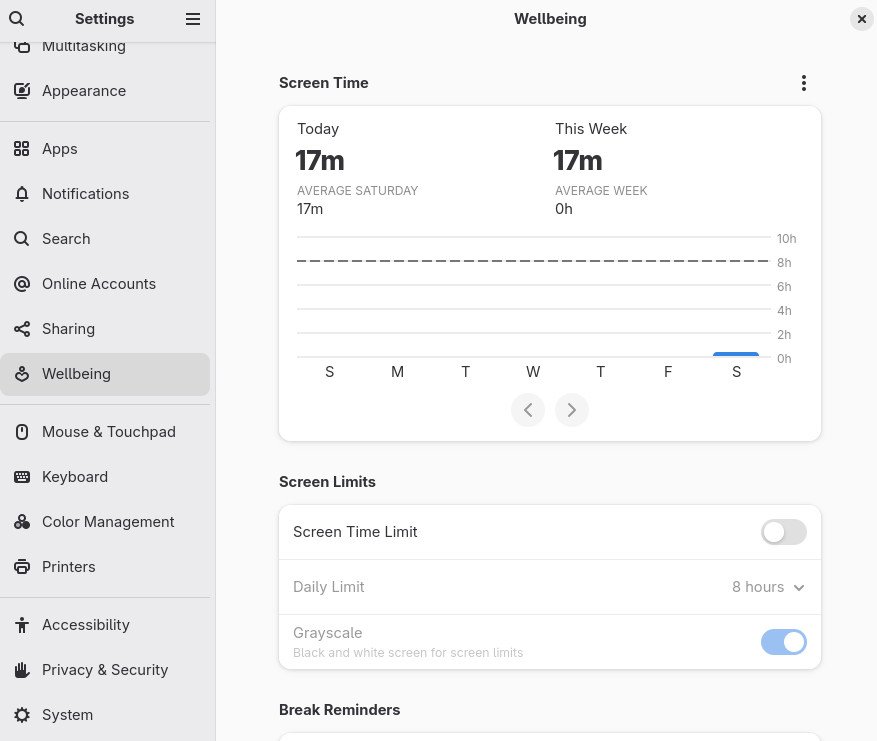
I always feel these kinds of features make a big difference for families using Linux. It is great to see GNOME investing here.
Accessibility gets exciting updates too. The Orca screen reader now has a brand new preferences window with better design and consistency. All settings are global by default, but you can save per-app options if you want. Automatic language switching works for both web content and app interfaces. Browse mode extends to all document content, and sticky mode turns on automatically for Electron apps. Braille support is enhanced, and Mouse Review now works properly in Wayland sessions.
A new Reduced Motion option in Accessibility settings lets you tone down interface animations. This helps users who feel discomfort from movement. These changes build nicely on previous versions and make GNOME more inclusive.
Document Annotation and Productivity Apps
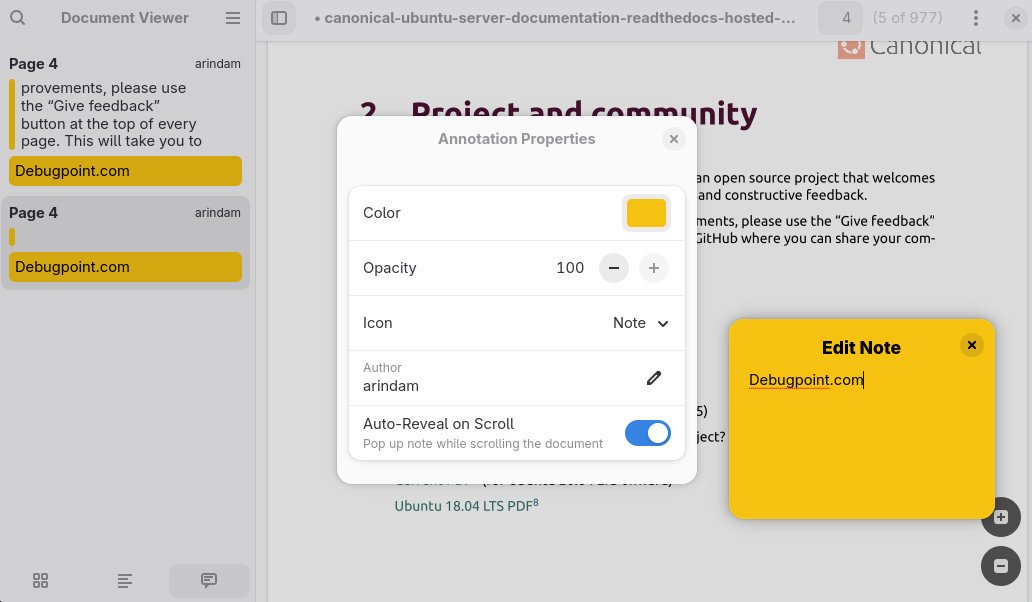
GNOME Document Viewer received a proper overhaul for annotations. You can now add text, lines, and highlights directly with a simple button in the main view. The interface stays clean with easy choices for color and line thickness, plus an eraser tool. It turns the app into a more useful tool for marking up PDFs.
GNOME Calendar also gets productivity boosts. A new attendee list shows invitees and their attendance status – a solid foundation for better invitation handling later. The Quick Add popover is redesigned for easier use. You can now export events as ICS files. The Month view looks better with a prominent month name, improved event alignment, and smoother scrolling. It respects your system’s first day of the week setting and supports arrow key navigation plus hardware Back/Forward buttons.
These small refinements add up. Calendar feels more capable for daily planning.
Files and Nautilus Improvements
One of the major highlights is in the Files app (Nautilus). Performance sees real gains – faster thumbnail and icon loading, reduced memory usage, and better reliability. It now uses the Glycin library for sandboxed image decoding and markup language for parts of the UI. Test coverage increased too, which should keep bugs low.
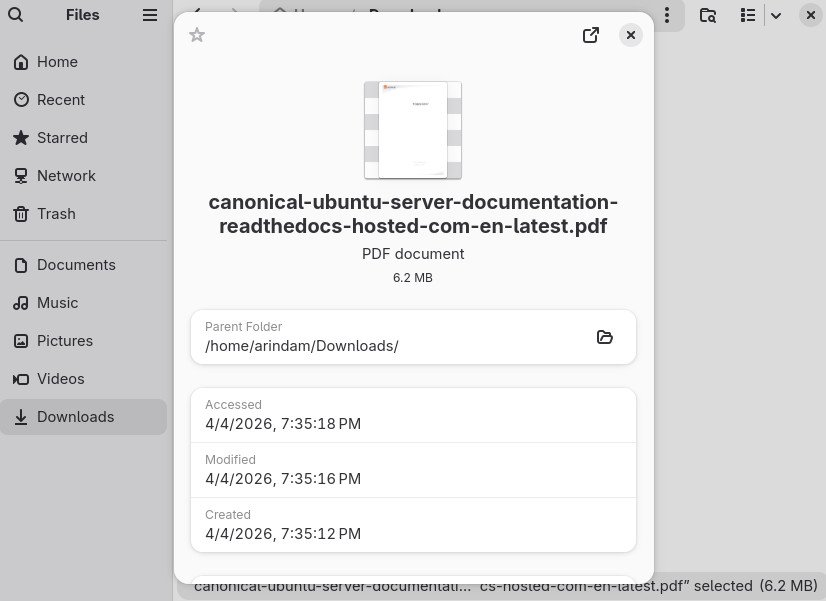
On the interface side, batch Rename is reworked with visual highlights for selected files. File properties now open in pop-out windows. A new captions dialog appears in grid view. Sidebar descriptions for file operations are shorter and clearer. Search supports multiple filters at once, and pathbar completions are case-insensitive.
You can feel the snappier experience in daily use. I tested this on my older hardware, and browsing large folders with many images feels noticeably quicker compared to GNOME 49.
GNOME Shell, Mutter, and Display Technologies
GNOME 50 brings promising improvements to the core desktop. Variable Refresh Rate (VRR) is now stable and no longer experimental. It delivers a tear-free experience that matches your display’s refresh rate while keeping low-latency cursor movement – great for 144Hz screens, for example. Fractional scaling is also stable, so options like 125% or 150% work reliably.
Remote Desktop gets hardware acceleration using Vulkan and VA-API. This means smoother streaming, less lag, and lower power use. Explicit sync helps with NVIDIA compatibility. You also get HiDPI support, camera redirection, Kerberos authentication, and HDR screen sharing. A new gnome-headless-session service lets you run a full desktop without a monitor attached and connect via RDP.
Mutter handles tiled monitors and sticky keys better. Next-gen color management (Wayland protocol v2) brings higher accuracy, and an SDR-Native mode is available. NVIDIA users should notice fewer stuttering issues and better frame timing.
GNOME Shell itself feels refined. The top bar handles keyboard layouts and external sources more smoothly. Power mode indicators appear when you are not on the default profile. Overall, the desktop feels more stable and future-ready.
GTK 4.22 powers this release with better SVG support and other polishing. libadwaita widgets help Settings dialogs look modern and consistent.
Performance Improvements
Many changes target snappier daily use. Files loads thumbnails faster with less memory. Remote Desktop streams better with hardware help. Display handling benefits from improved frame scheduling and VRR stability.
I tested GNOME 50 in a virtual machine and on real hardware. Animations feel smooth, and the system responds quickly even with multiple apps open. These are quality of life improvements that make you appreciate the desktop more over time.
Other Notable Changes
New GNOME Circle apps join the ecosystem: Gradia for advanced screenshot annotation, Sudoku with conflict highlighting, Constrict for video compression, and Sessions as a Pomodoro timer. Fresh wallpapers, including a nice dark mode variant, are included.
Settings gains a first day of the week option in Date & Time (respected by Calendar and other apps) and better distinction between input/output volumes in Sound.
Developer experience improves too, with updates in Builder and other tools.
GNOME 50 is a fully Wayland-only desktop – X11 support is gone. This focuses the project on modern foundations and should bring long-term benefits in security and performance.
Download and Availability
GNOME 50 is available out of the box with the latest Fedora Workstation 44 (to be released). It will arrive as the default desktop in Ubuntu 26.04 LTS. Arch Linux, Manjaro, and other rolling releases should get it soon through updates. As of publishing this , its is in Extra staging. You can install it from staging using this guide by configuring the package manager.
You can try it right away using GNOME OS. Just download the latest image from os.gnome.org and run it in a virtual machine with GNOME Boxes (available on Flathub). This is the easiest way for beginners to test without affecting your main system.
If you are on Ubuntu 24.04 or 25.10, wait for the next interim release or check for a GNOME PPA if you want it earlier. Fedora users on older versions can upgrade normally when the new Workstation drops. Advanced users can always build from source using the official instructions.
Wrapping Up
GNOME 50 “Tokyo” delivers a balanced set of improvements. Parental controls and accessibility enhancements stand out as particularly useful. Performance tweaks in Files and display technologies make daily use feel snappier. The move to a pure Wayland desktop shows the project’s commitment to a modern foundation.
These changes are practical and make the desktop better for real people – families, power users, and everyone in between. You should give it a try, especially if you value a clean, consistent experience.
I hope this helps you decide whether to upgrade or test GNOME 50. Cheers.
You can read the full details in the official release notes: GNOME 50 Release Notes.


